---
title: How to Add a Custom Background to Agent Video Calls
description: Learn how to configure custom video backgrounds for agent video calls in TrueEngage. Upload a PNG background, match camera aspect ratios, and understand how backgrounds override blur settings. Includes feature limitations and setup guidance.
---
[ ](https://kb.trueengage.com/?hsLang=en)
[Home](https://trueengage.com/?hsLang=en) [Docs](https://kb.trueengage.com/genesys-cloud?hsLang=en) [Pricing](https://trueengage.com/genesys-cloud/pricing?hsLang=en)
[Sign In](https://management.trueengage.com/login) [Install from AppFoundry](https://appfoundry.genesys.com/filter/genesyscloud/listing/d3d5011e-668b-411c-bc8d-512e3023b359) [Book a Demo](https://trueengage.com/genesys-cloud/demo?hsLang=en)


[Home](https://trueengage.com/?hsLang=en) [Docs](https://kb.trueengage.com/genesys-cloud?hsLang=en) [Pricing](https://trueengage.com/genesys-cloud/pricing?hsLang=en)
[Sign In](https://management.trueengage.com/login) [Install from AppFoundry](https://appfoundry.genesys.com/filter/genesyscloud/listing/d3d5011e-668b-411c-bc8d-512e3023b359) [Book a Demo](https://trueengage.com/genesys-cloud/demo?hsLang=en)
[Skip to content](https://kb.trueengage.com/genesys-cloud/how-to-add-a-custom-background-to-agent-video-calls-#main-content)
- [Tickets](https://support.trueengage.com/tickets-view)
- [Sign out](https://support.trueengage.com/_hcms/mem/logout)
Open main navigation
Close main navigation
- [Tickets](https://support.trueengage.com/tickets-view)
- [Sign out](https://support.trueengage.com/_hcms/mem/logout)
How can we help you?
- There are no suggestions because the search field is empty.
1. [Knowledge Base](https://kb.trueengage.com/genesys-cloud?hsLang=en)
2. [FAQs](https://kb.trueengage.com/genesys-cloud/faqs?hsLang=en)
# How to Add a Custom Background to Agent Video Calls
TrueEngage allows you to enhance the visual experience of video calls by adding a **custom video background** behind the *agent’s camera feed*. This feature can help reinforce branding, improve privacy, and create a more professional appearance during customer interactions.
You can configure the video background directly in the **Management Panel → Widgets → Design → Additional Settings**.
---
Video background option let you upload an image that will replace the agent’s real environment during a video call.
When enabled, every video call coming **from this widget** will display the uploaded background image behind the agent.
This feature is ideal for:
- Retail kiosks
- Financial or healthcare consultations
- Virtual service desks
- Any scenario where a consistent or branded appearance is required
#### **How to Enable and Configure the Video Background**
1. Open your widget in the **TrueEngage Management Panel**.
2. Navigate to:
**Design → Additional Settings**
3. Locate the **Video backgrounds** option.
4. Turn the toggle **ON**.
5. Upload your PNG image. (Maximum size: *8MB*)
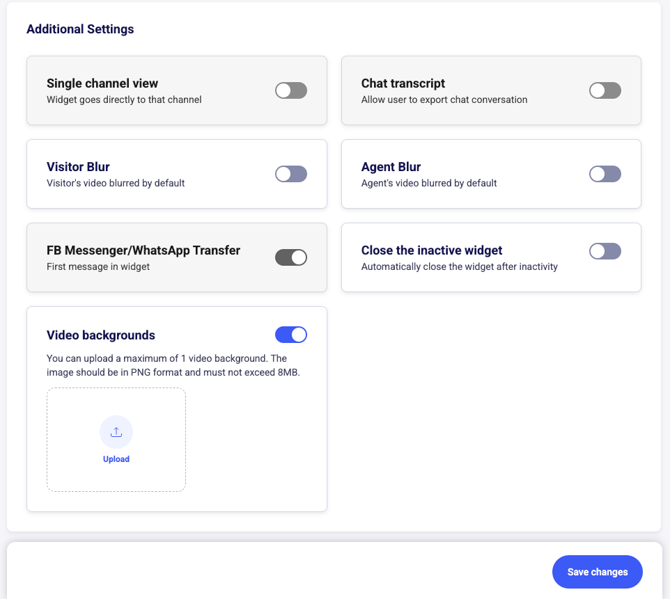
Once uploaded, the background becomes active immediately for all video interactions made through this widget.
---
#### **Image Requirements**
To ensure the background displays correctly behind the agent, the image ratio should match the **agent’s camera aspect ratio**.
Common ratios include:
- **4:3** — Many built-in laptop webcams
- **16:9** — Most external webcams
Using a matching ratio prevents stretching or cropping of the background during video calls.
---
#### **Interaction with Blur Settings**
- If you enable a **video background**, it will automatically **override the Agent Blur setting** for this widget.
- Visitor Blur remains unaffected.
This ensures that the background image is always visible and not partially blurred.
---
#### **Important Limitation**
⚠️ **Video background does not work in the Genesys Desktop Application.**
This is a current limitation of the Genesys environment and may change if Genesys updates their Desktop App rendering pipeline.
- [Getting Started](https://kb.trueengage.com/genesys-cloud/getting-started?hsLang=en)
- [Installation & Setup](https://kb.trueengage.com/genesys-cloud/installation-setup?hsLang=en)
- [User Guide](https://kb.trueengage.com/genesys-cloud/user-guide?hsLang=en#main-content)
- [Contact Channels](https://kb.trueengage.com/genesys-cloud/user-guide?hsLang=en#contact-channels)
- [Features](https://kb.trueengage.com/genesys-cloud/features?hsLang=en)
- [FAQs](https://kb.trueengage.com/genesys-cloud/faqs?hsLang=en)
- [Troubleshooting](https://kb.trueengage.com/genesys-cloud/troubleshooting?hsLang=en)
- [Administration & Billing](https://kb.trueengage.com/genesys-cloud/administration-billing?hsLang=en)
- [Integrations & API's](https://kb.trueengage.com/genesys-cloud/integrations-apis?hsLang=en)
- [Architecture & Security](https://kb.trueengage.com/genesys-cloud/architecture-security?hsLang=en)
- [Legal](https://kb.trueengage.com/genesys-cloud/legal?hsLang=en)
- [Interaction Routing & Availability](https://kb.trueengage.com/genesys-cloud/interaction-routing-availability?hsLang=en)
[%20copy.png?width=440&height=36&name=logo%20(3)%20copy.png "logo (3) copy")](https://www.trueengage.com?hsLang=en)
[mailto:email@email.com](mailto:email@email.com)