

Before you begin
Make sure you have:
- access to Deployments in the TrueEngage admin panel
- at least one Genesys Cloud queue for callbacks
- a Genesys Cloud schedule group with opening hours, if you plan to offer scheduled callbacks
1. Add the Callback Request channel
Where: Deployments → your deployment → Channels (left sidebar)
- In the Choose channels panel on the right, find Callback Request.
- Drag it into an empty channel position in the widget layout.
- Check that the callback channel appears in the preview.
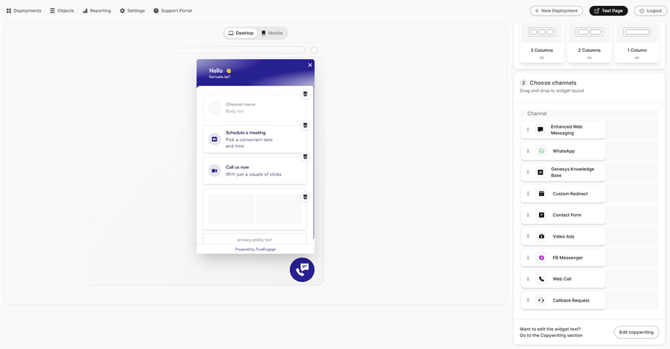
2. Set the callback mode
Where: Settings (left sidebar) → Callback section in the right-hand panel
| Setting | Option | What the visitor can do |
|---|---|---|
| Callback mode | Scheduled and Immediate (recommended for your first test) | Ask for a call now or book a later slot |
| Scheduled | Book a later slot only | |
| Immediate | Ask for a call now only | |
| 12-Hour Time Format | On or Off | When on, slot times are shown with AM/PM |
3. Set up callback routing
Where: Routing (left sidebar)
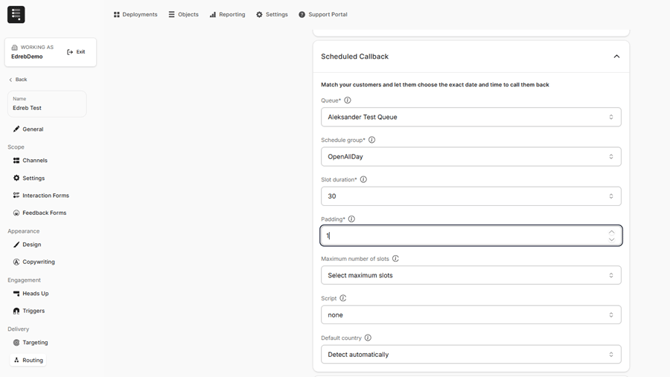
Routing tells TrueEngage which Genesys Cloud queue receives each callback. Scheduled and immediate callbacks have separate sections. Fields marked with an asterisk (*) are required.
Scheduled Callback
| Field | What to enter |
|---|---|
| Queue* | The Genesys Cloud queue that receives scheduled callbacks |
| Schedule group* | The Genesys Cloud schedule group whose opening hours set the bookable slots |
| Slot duration* | The length of each slot, for example 30 |
| Padding* | The number of slots to skip before the first available callback time, for example 1 |
| Maximum number of slots | Optional. The maximum number of slots shown to the visitor |
| Script | Optional. A Genesys Cloud agent script, or None |
| Default country | Select Detect automatically to pre-fill the visitor’s country code |
Immediate Callback
| Field | What to enter |
|---|---|
| Queue* | The Genesys Cloud queue that receives immediate callbacks |
| Script | Optional. A Genesys Cloud agent script, or None |
| Default country | Select Detect automatically to pre-fill the visitor’s country code |
| Check schedule group | Select this to offer immediate callbacks only during opening hours |
| Check estimated waiting time | Select this to offer immediate callbacks only when the queue’s wait time is acceptable |
4. Test the callback channel
Where: Test Page button, upper-right corner of the admin panel
- Open the widget from its launcher and select Callback.
- With Scheduled and Immediate selected, the widget shows two options: Call me back now and Call me back later.