

Before you begin
Make sure you have:
- access to the TrueEngage admin panel, including Objects and Deployments
- a widget deployment with at least one channel configured (this article uses Enhanced Web Messaging as an example)
- a Genesys Cloud agent account with the TrueEngage Visitor Journey app available, for the final check
1. Create an interaction form
- Go to Objects → Interaction forms.
- Select Add new form to create a form, or Edit next to an existing one. This example uses an existing form named Test form.
- In the editor, enter a recognizable Form name. Add a short Header text that tells the visitor what to provide, for example: “Please fill out the information below.”
2. Choose the fields to collect
- Drag the fields you need onto the form preview. This example uses First name, Last name, and Phone number. You can also add Email address, Consents, Topic list, and Custom field.
- Use a field’s drag handle to change its position, or the trash icon to remove it.
- Select the pencil icon to open a field’s settings. Depending on the field, you can:
- set the field to Optional or Required
- enter Text in hint if visitors need guidance
- Save the form. It will appear in the Form name list only after it has been saved.
Required fields are marked with an asterisk (*) in the preview.
Predefined and custom fields
- Predefined fields such as First name, Last name, Phone number, and Email address have fixed labels that cannot be changed. You can still make them optional or required and add a hint.
- Custom fields let you collect anything the predefined fields don’t cover. You can add as many as you need. Each one can be optional or required.
- Topic lists can also be added more than once.
Tip: Collect only the details you need for the interaction.
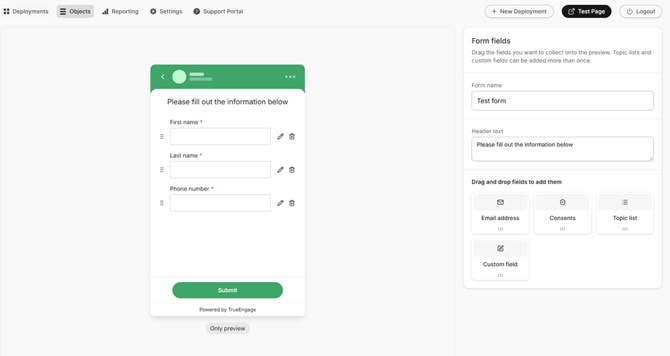
Interaction form editor with the example fields.
3. Assign the form to a widget channel
- Go to Deployments and edit the widget you want to use.
- Go to Scope → Interaction Forms.
- Under Pre Interaction Forms, turn on the channel where you want to show the form. Then select your saved form from the Form name list. This example uses Enhanced Web Messaging, but you can assign forms to any channel shown in this panel. Each channel can have its own form.
- Select a channel card to preview the form assigned to it. Turn on only the channels where you want to collect information.
- Select Save changes.
4. Test the form as a visitor
- Select Test Page in the upper-right corner of the admin panel, then select the channel you configured (in this example, Chat).
- Check that the form appears before the conversation starts, and that the header and fields match your configuration.
If a conversation is already open, start a new visitor session (for example, in a private browser window) so you can see the start of a new interaction. - Leave a required field empty and try to continue. The form should ask you to fill it in.
- Enter test details and select Start chat.
Note: The button in the editor preview says Submit, but the live messaging form says Start chat.
5. Check the submitted details in the agent view
- Continue through the flow you configured. If a bot handles the conversation first, ask for an agent.
- In Genesys Cloud, accept the interaction and open the TrueEngage Visitor Journey app.
- Expand Interaction Form Data and check that the values match what the visitor entered.
If they match, the form data is reaching the agent. Repeat this test for every other channel where you turned on a form.
Important: A form only collects data. It does not change how interactions are routed. If you want customer data to affect routing, set that up and test it separately with your administrator.