

To ensure that agent avatars are visible to customers in widget, several configuration steps must be completed. The requirements differ slightly between webMessenger and audio calls.
1. Agent Avatars in webMessenger
To display agent avatars in web chat or Messenger, make sure the following settings are in place:
1.1 Set the Agent Image
-
The agent must have an image assigned in their profile.
-
Important: The image must be set as Agent Image, not as Profile Picture.
(Only the Agent Image is used by Genesys for customer-facing channels.)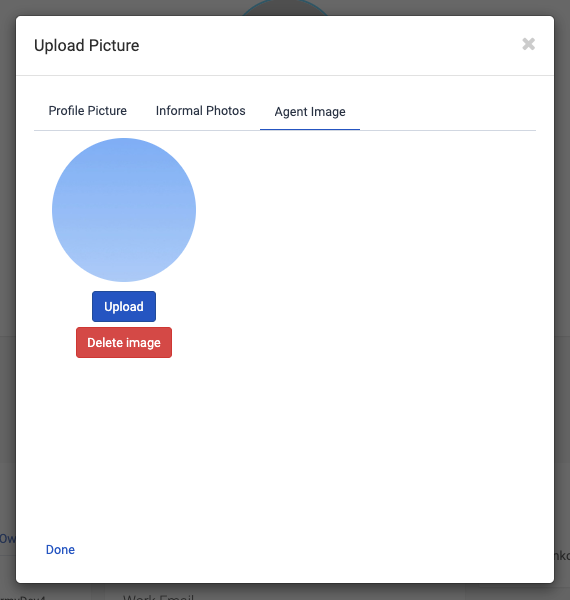
1.2 Enable “Humanize Your Conversation”
-
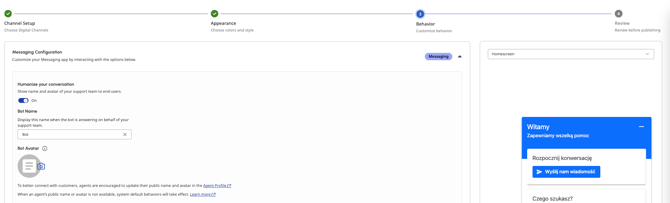
Navigate to the Messenger Configuration used by the relevant Messenger Deployment.
-
In the Behavior section, enable the option Humanize your conversation.
-
This setting allows Messenger to display agent avatars to end users.
2. Agent Avatars in Audio Calls
To show agent avatars during audio interactions, ensure the following prerequisites are met:
2.1 Set the Agent Image
-
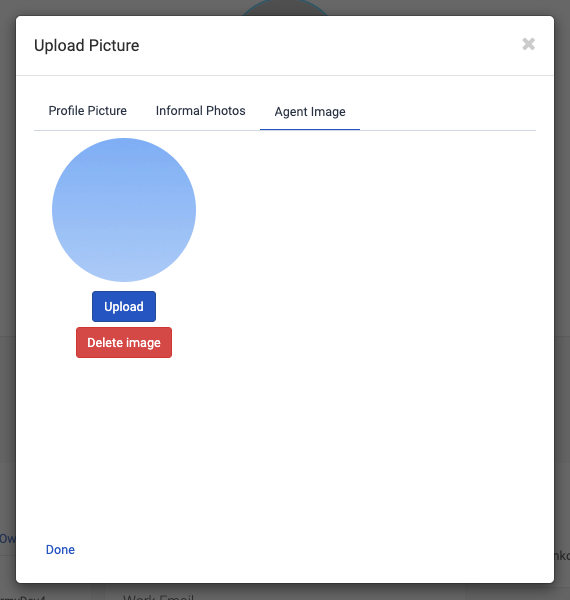
As with chat, the agent must have an image assigned as Agent Image (not Profile Picture).
If all the above conditions are met, agent avatars should display correctly across the relevant Genesys channels.