In-interaction forms are forms displayed to the user during a conversation with the bot. They can be used to collect contact details or additional information that can be utilized during the interaction.
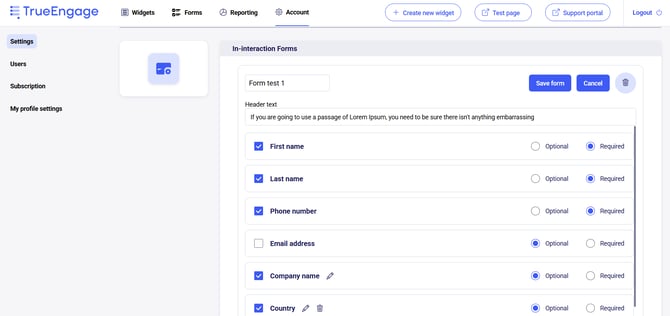
The form can include the following fields:
-
first name,
-
last name,
-
phone number,
-
email address,
-
custom fields,
-
topic list (custom dropdown list),
-
consents.
Each field can be configured as optional or required, depending on which data needs to be collected during the interaction with the user. In addition to fields, you can also add your own header text to the form.
Management Panel Configuration
In-interaction forms are configured in the management panel under:
Account → Settings → In-interaction Forms.
To activate a form, copy the form invocation snippet (available under the “Deployment” button) and use it within the configuration on the Genesys Cloud side.
Genesys Cloud Configuration
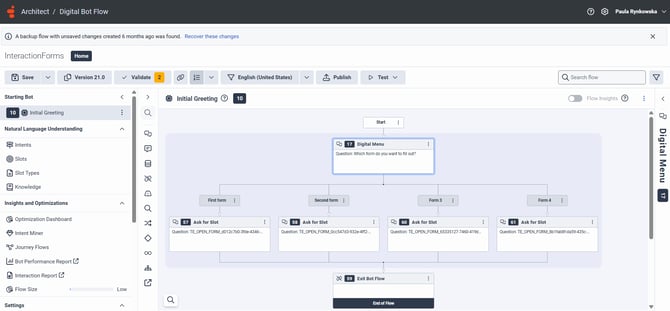
For the bot flow to properly wait until the form is actually completed, it is not enough to simply send the command — the flow must wait for the corresponding response. When the visitor finishes filling out the form, the widget sends a return message TE_FORM_FILLED, and the bot needs to wait for this event.
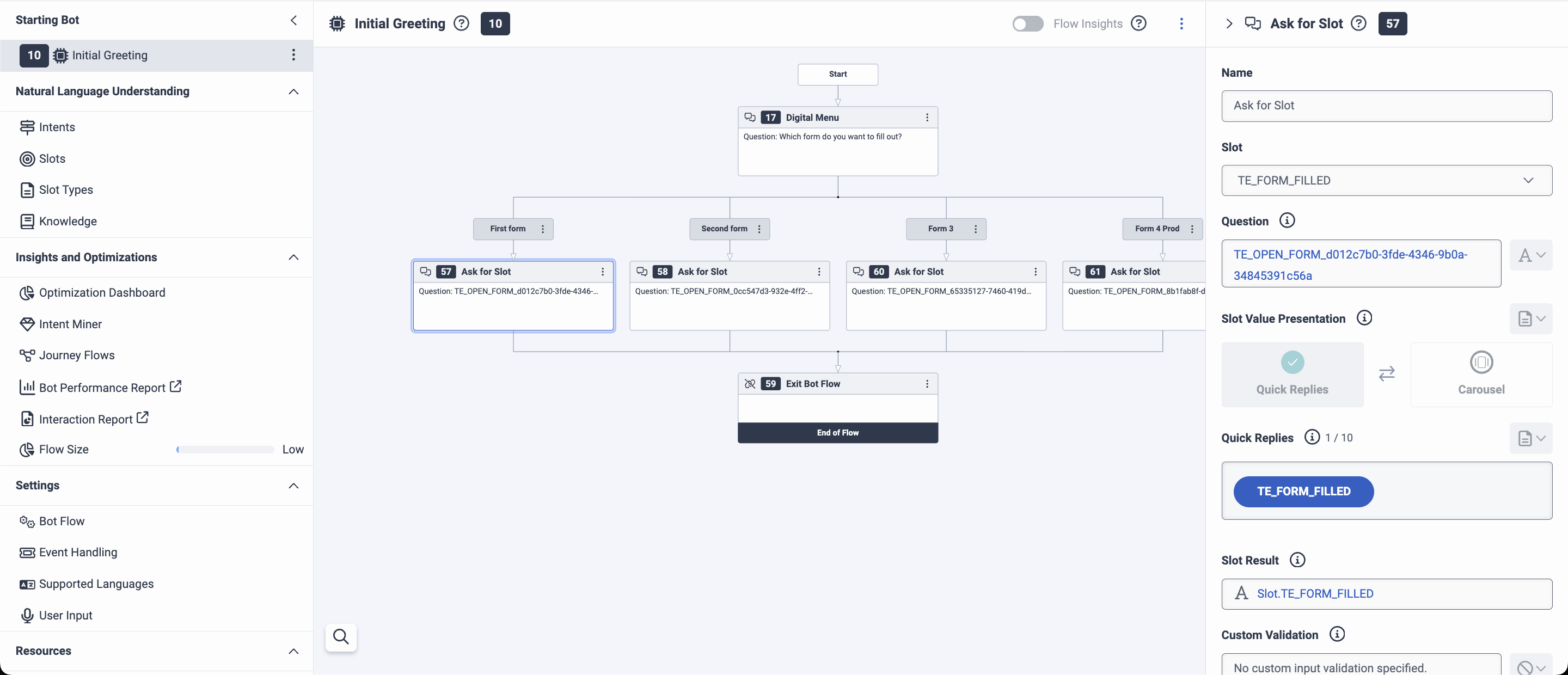
The solution recommended by TrueEngage is to use an Ask For Slot action where the question is the command configured in the TrueEngage management panel, and the only valid response option is TE_FORM_FILLED.
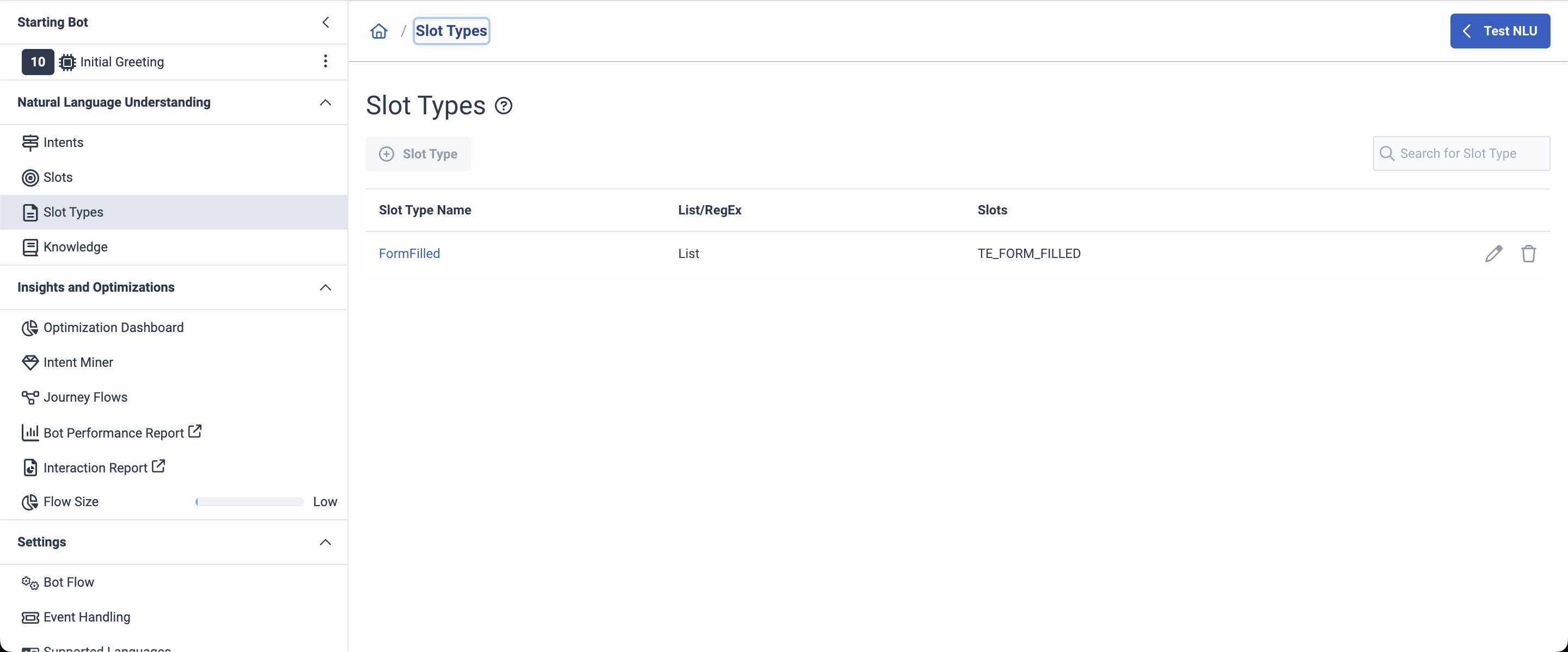
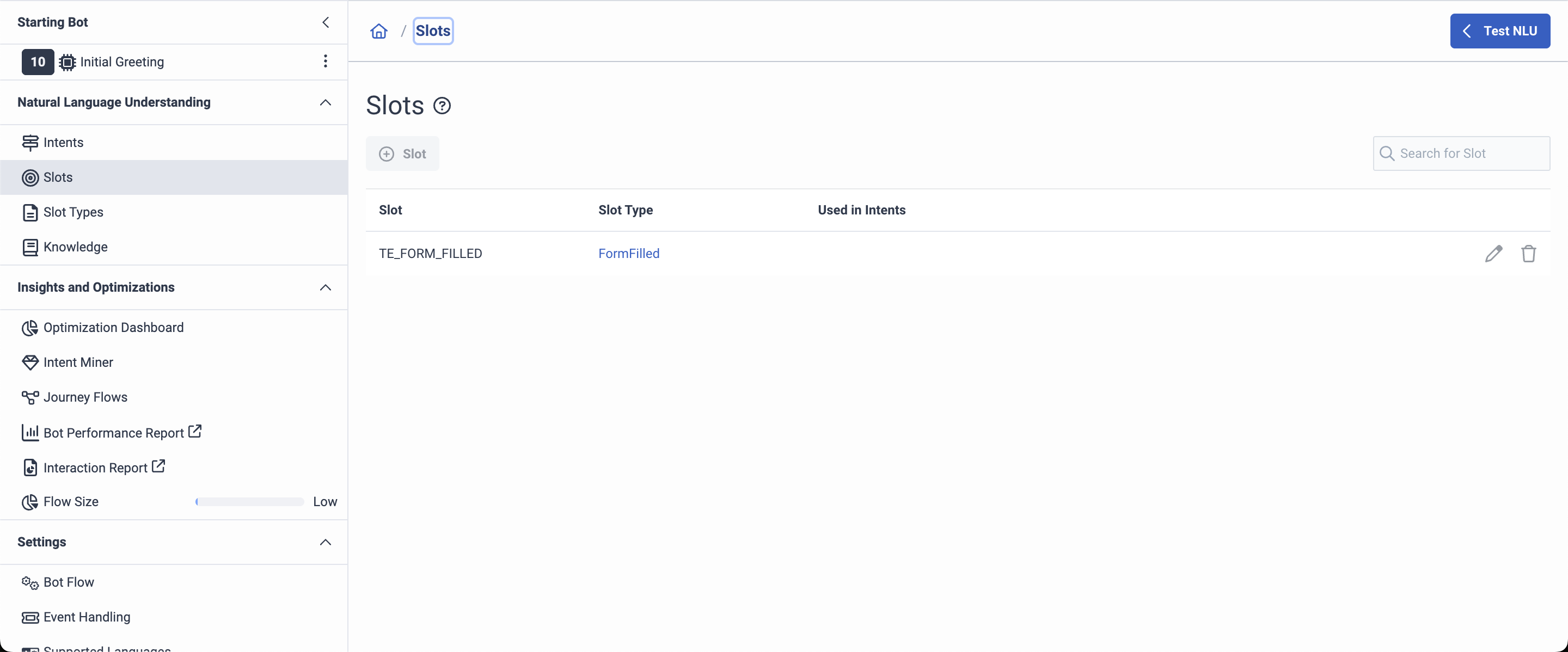
To set this up, first create a Slot Type in the Flow (e.g., named FormFilled) with a single value: TE_FORM_FILLED. Then create a Slot of that type and name it TE_FORM_FILLED. After that, you can use the Ask For Slot action in the flow and select the TE_FORM_FILLED slot you defined.