

Overview
If you signed up for TrueEngage on the TrueEngage website, your account isn't connected to Genesys Cloud yet. A Genesys Cloud admin connects it by installing TrueEngage from AppFoundry and entering a token you send them. If you haven't signed up yet, start from AppFoundry instead: see How to install TrueEngage from Genesys AppFoundry.
Before you start
- Your organization meets the TrueEngage prerequisites.
- The Genesys Cloud admin who installs TrueEngage has the installation permissions listed in How to install TrueEngage from Genesys AppFoundry.
Step 1: Create your TrueEngage account
- Go to management.trueengage.com/register and fill in the form with your work email.
- Open the activation email and click the link to activate your account.
- Set a password and sign in to the TrueEngage management panel.
Step 2: Send the connection details to your Genesys Cloud admin
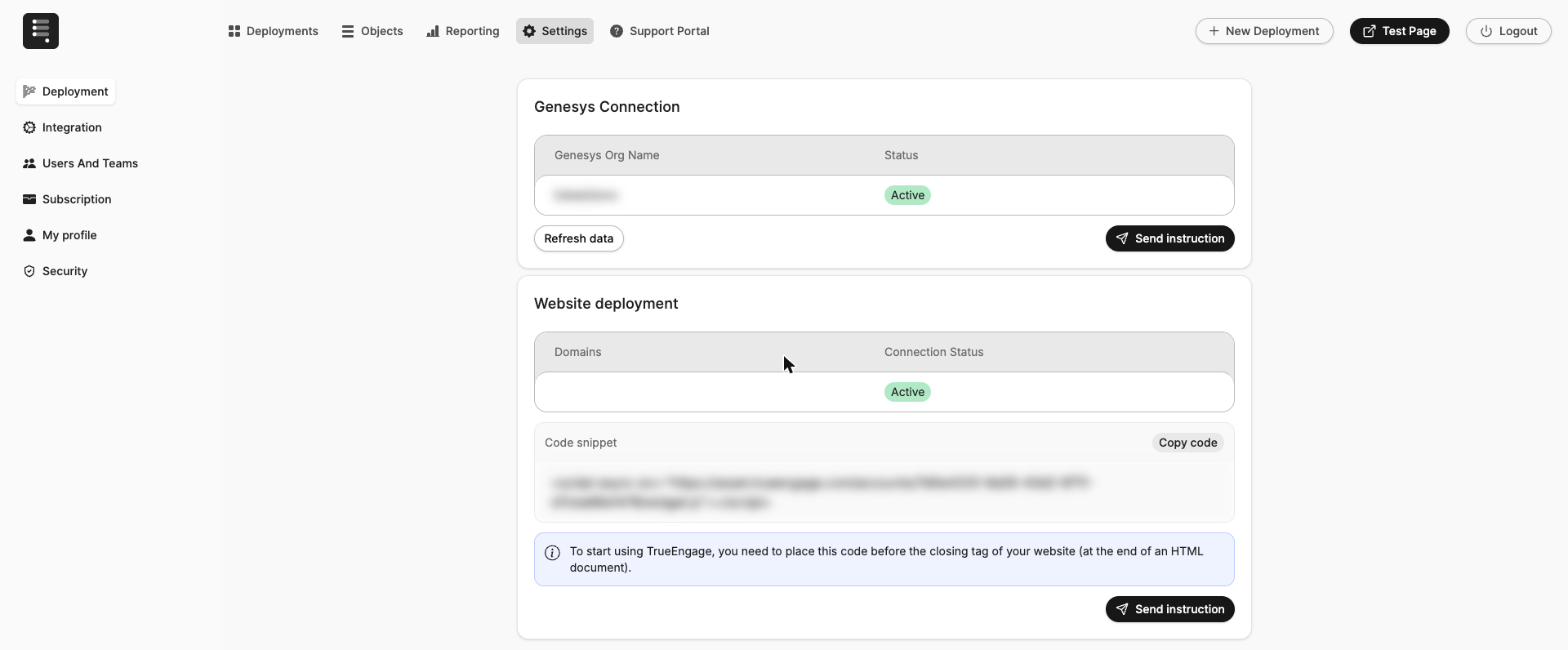
- In the management panel, go to Settings > Deployment.
- Click Send instruction next to Genesys Connection. This emails the connection steps and a token to your Genesys Cloud admin or Genesys partner.
Step 3: Install and connect in Genesys Cloud (Genesys Cloud admin)
- Subscribe to TrueEngage in AppFoundry and activate the integration, as in Steps 1 and 2 of How to install TrueEngage from Genesys AppFoundry.
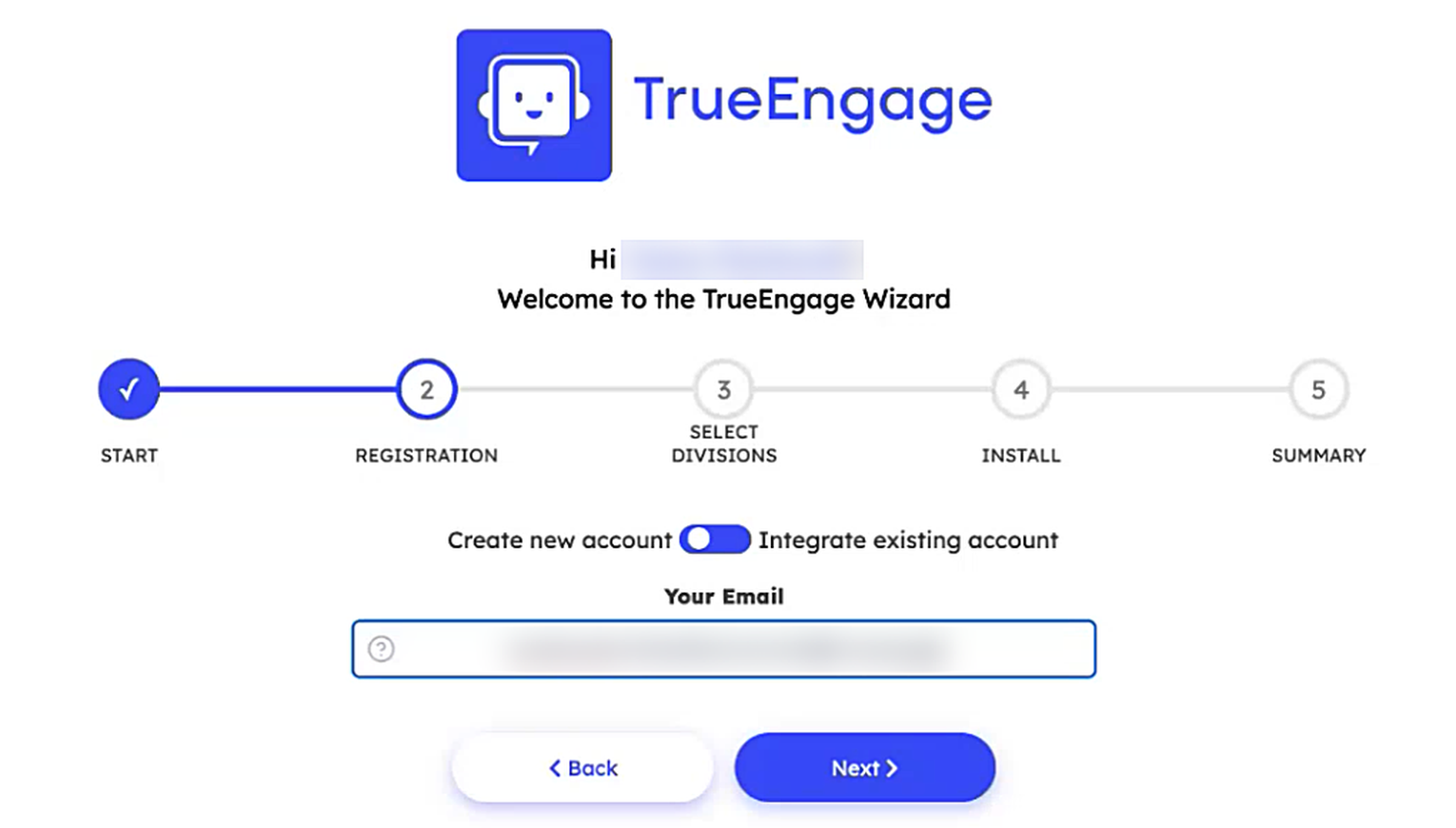
- Go to Menu > Apps > TrueEngage to open the installation wizard.
- On the Registration step, switch the toggle to Integrate existing account and enter the token from the email or the TrueEngage panel.
- Complete the Select Divisions, Install and Summary steps.
Troubleshooting
- No email with the token: click Send instruction again, or copy the token from the TrueEngage panel.
- No option to start a free trial or subscribe in AppFoundry: see Whitelisting TrueEngage in AppFoundry.
- Anything else: contact support@trueengage.com.