

Overview
Genesys Cloud includes web surveys that you can send after an interaction, by email or as a survey link in a messaging conversation. TrueEngage Feedback Forms add a survey inside the TrueEngage widget itself: when a web messaging chat, web call or video call ends, the visitor sees a short rating form straight away, without leaving the page. Each answer is saved in Genesys Cloud with the interaction.
Before you start
- The Feedback Forms add-on is part of your TrueEngage subscription. See How does TrueEngage pricing work?
- If TrueEngage was installed in your Genesys Cloud organization before April 2026, add the survey permissions to the TrueEngage client role first. See Why can't I see survey results in interaction details?
Step 1: Create a feedback form
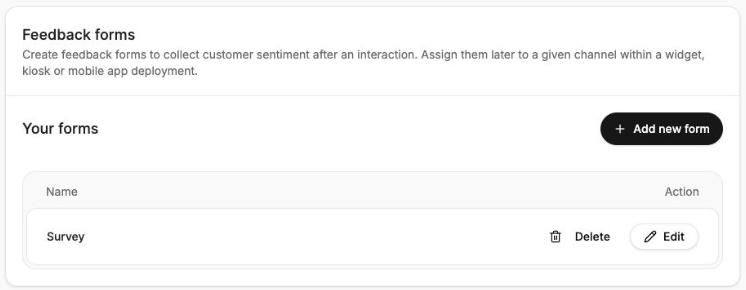
- In the TrueEngage management panel, go to Objects > Feedback forms and click Add new form.
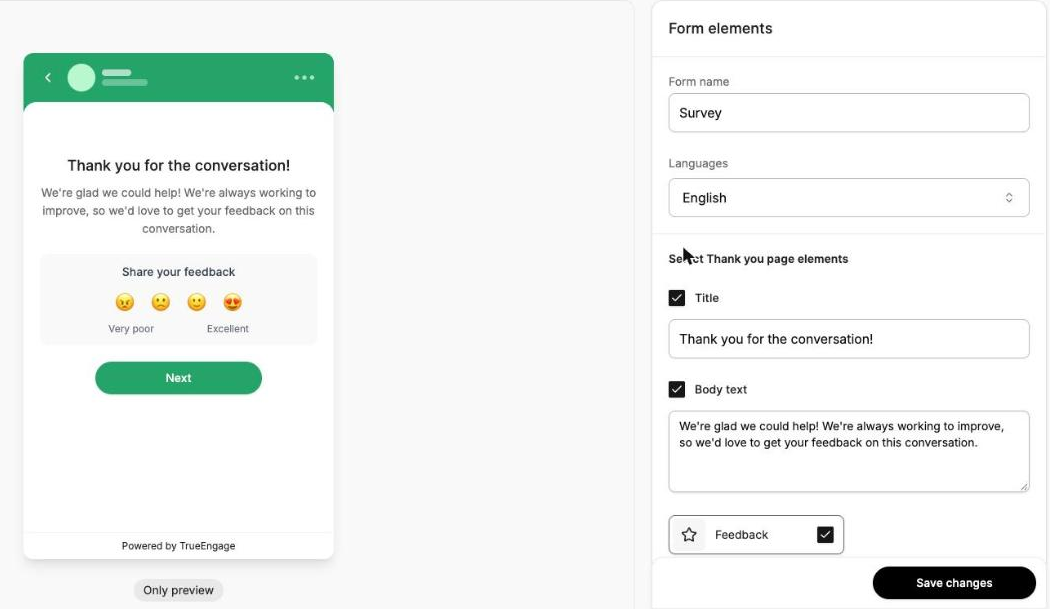
- Under Form Elements, enter a form name and choose the language.
- Optionally, set the title and body text the visitor sees above the question, for example "Thank you for the conversation!".
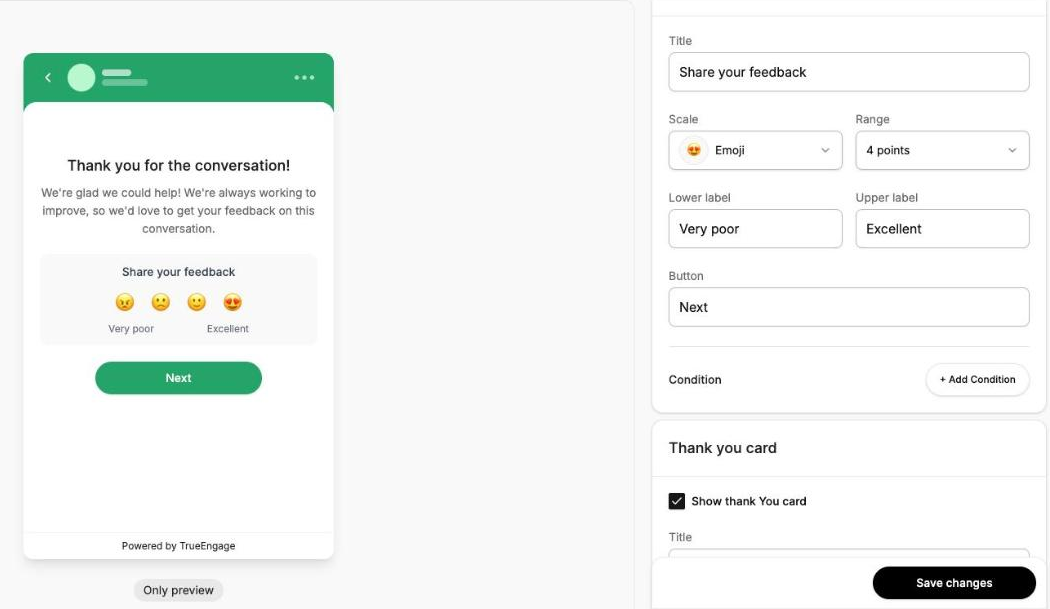
- Under Feedback elements, set up the rating question:
- Title: for example "Share your feedback".
- Scale and range: for example Emoji, 4 points.
- Lower and upper labels: for example "Very poor" and "Excellent".
- Button text: for example "Next".
- Optionally, turn on the Thank you card shown after the visitor answers.
- Click Save changes.
Step 2: Turn the survey on for a channel
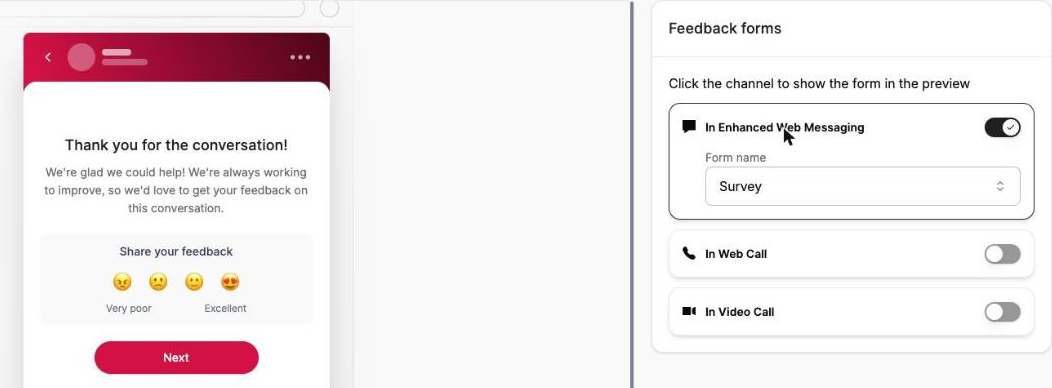
- Go to Deployments, open the deployment and select Feedback Forms.
- Switch on each channel that should show the survey: In Enhanced Web Messaging, In Web Call or In Video Call.
- For each channel, choose the form under Form name. Click the channel to preview the form.
- Click Save changes.
Feedback forms can be assigned to widget, kiosk and mobile app deployments.
Step 3: See the answers in Genesys Cloud
When the interaction ends, the visitor sees the form in the widget. Their answer is saved with the interaction and appears in the interaction details in Genesys Cloud.
Questions people ask
Can I use a survey after calls, not just chats?
Yes. TrueEngage feedback forms can be switched on for web messaging, web calls and video calls, each with its own form, in the Feedback Forms tab of the deployment.
How is a feedback form different from a pre-chat form?
A pre-interaction form collects details before the conversation starts. A TrueEngage feedback form asks for a rating after the conversation ends. See How to collect customer data before an interaction.